 ScreenHawk
Chrome extension
Ask about what’s on your screen.
Select part of a Chrome tab, ask a question, and get an OpenAI answer without leaving the page.
How it works
Open ScreenHawk
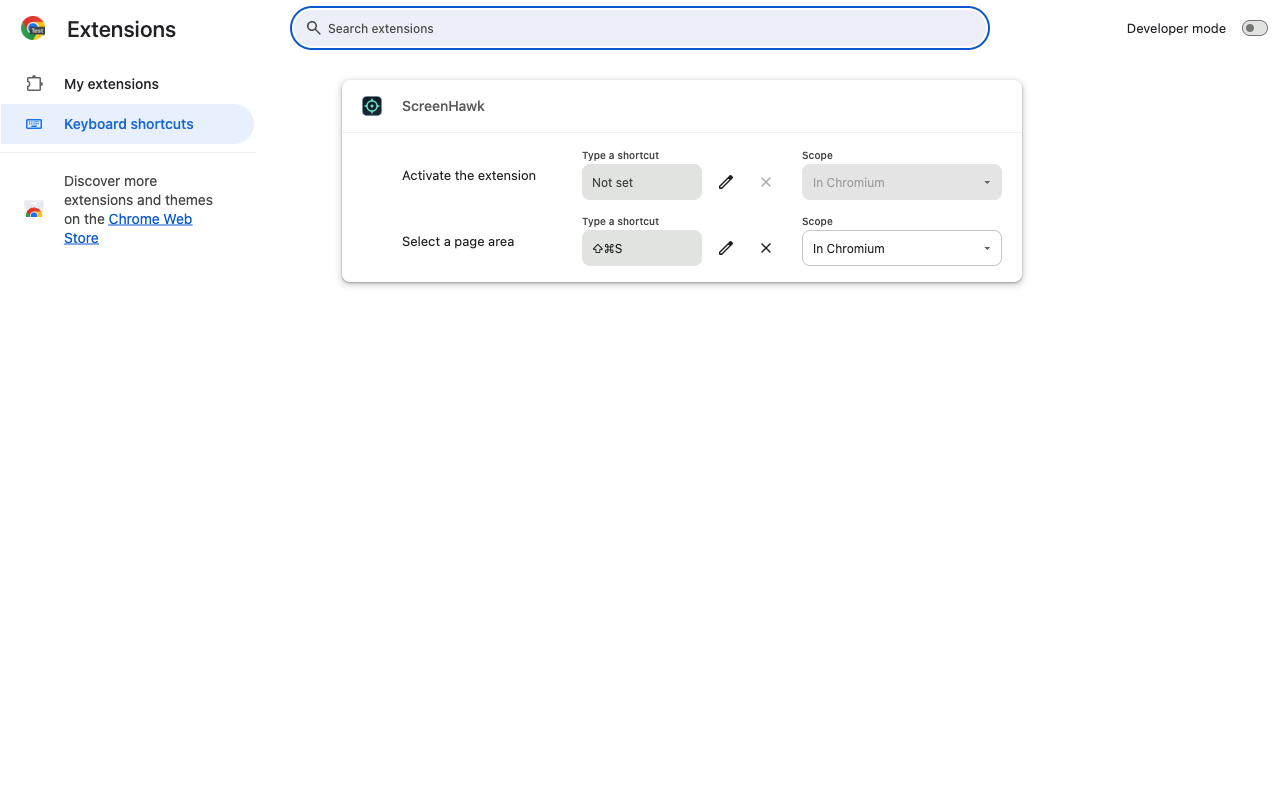
Click ScreenHawk in the Chrome toolbar or use its capture shortcut.
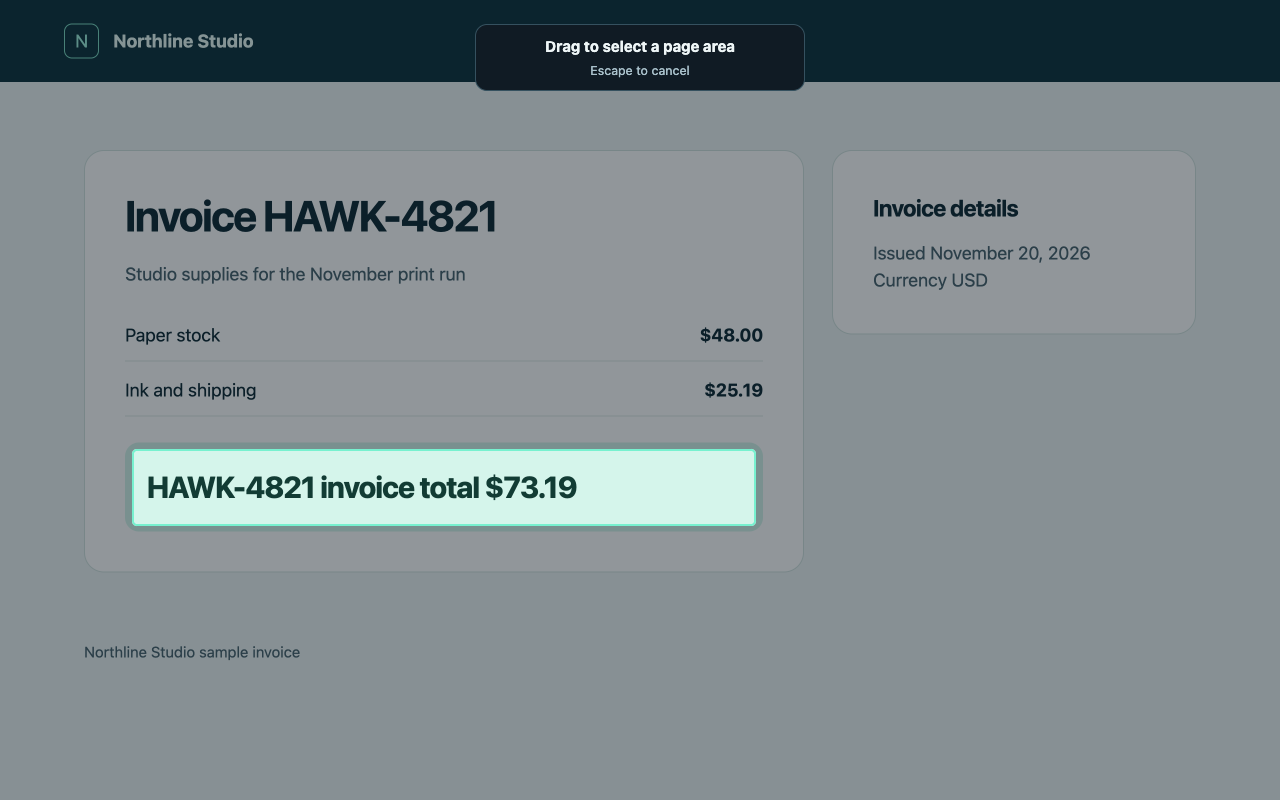
Select an area
Drag a box around a chart, a message, or any visible part of the page.
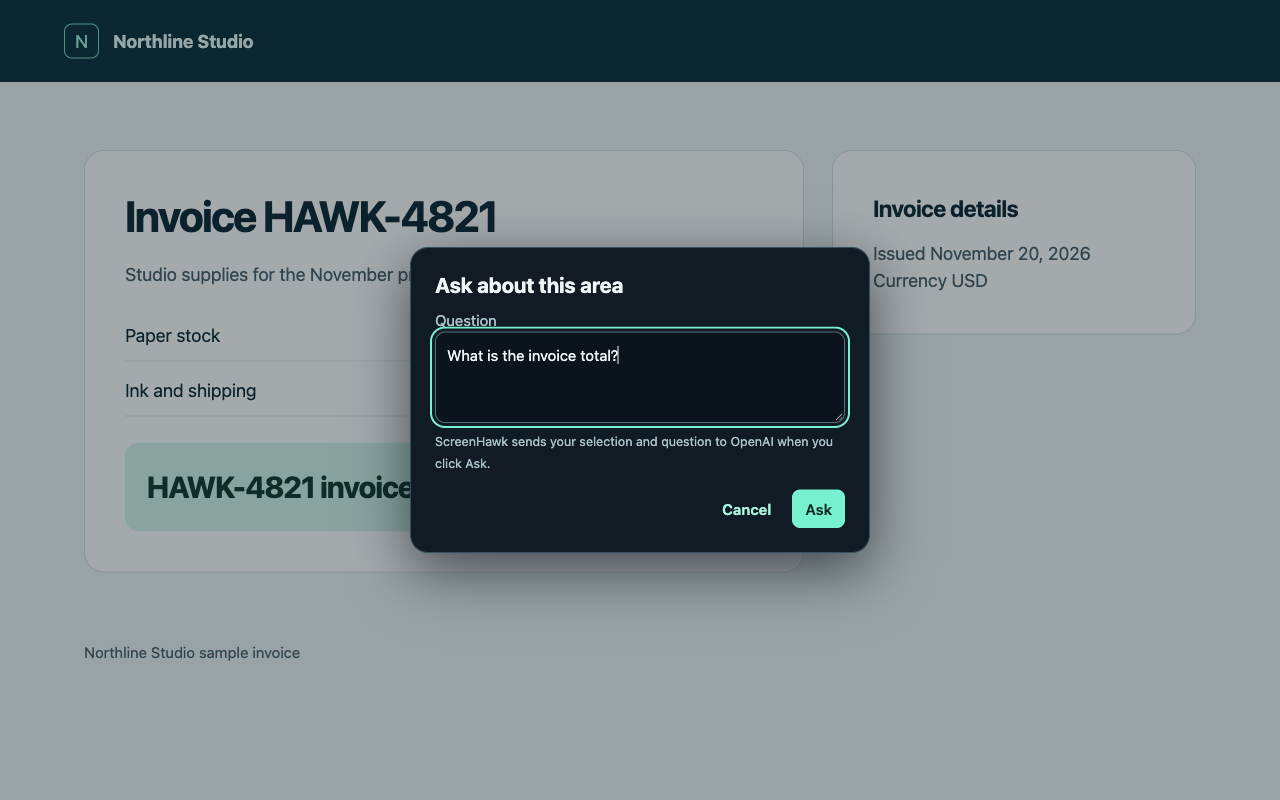
Ask a question
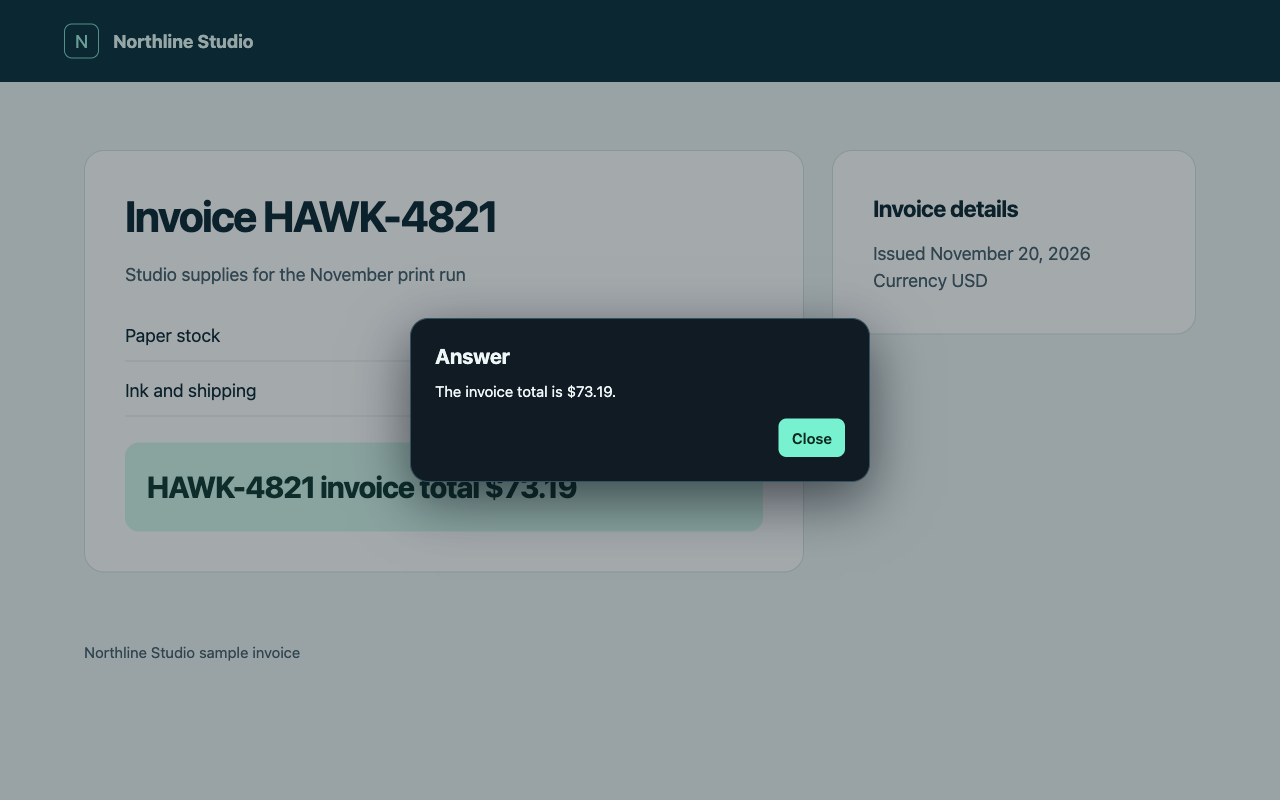
Submit your question and read the answer on the same tab.
Bring your own OpenAI key
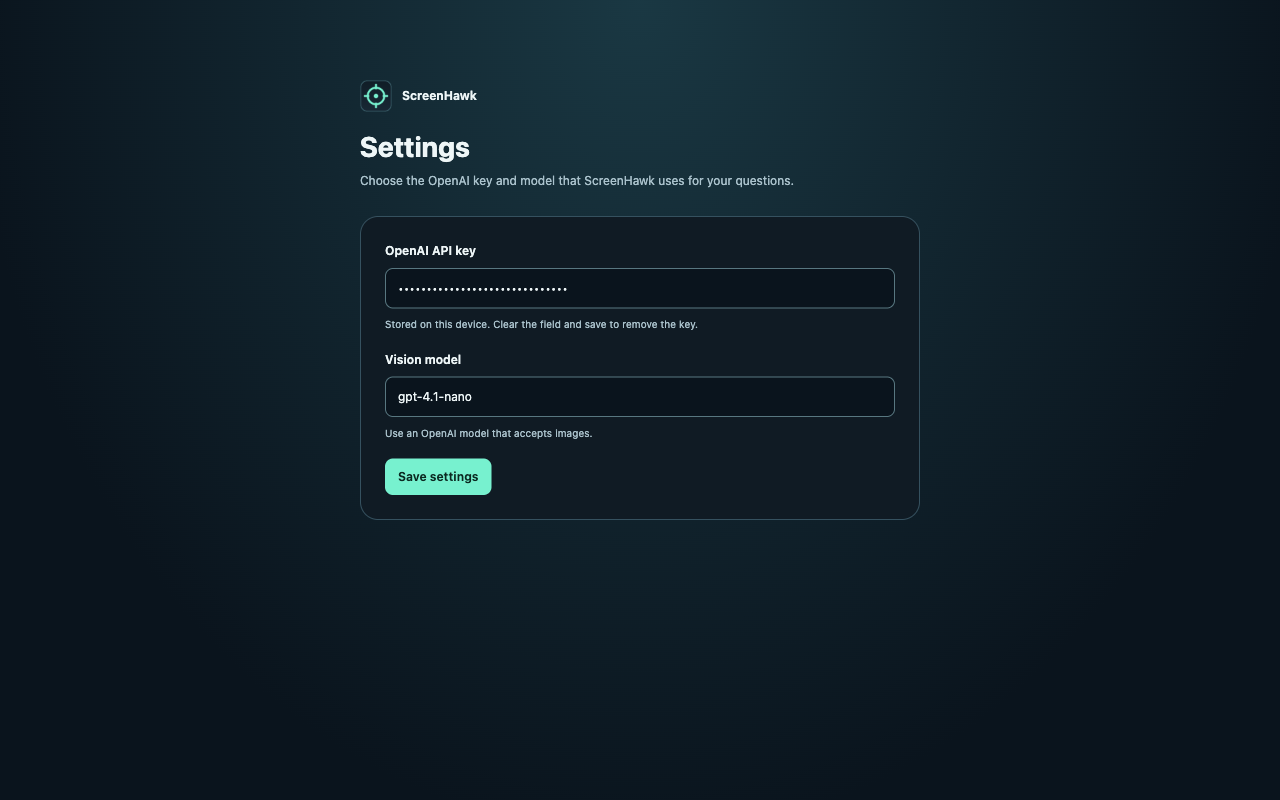
Save your OpenAI API key in ScreenHawk’s options. The key stays in local extension storage. The default model is GPT-4.1 nano. Your browser uses it to send the selected image and your question directly to OpenAI when you submit.
What does it cost?
You pay OpenAI directly, based on your API usage. The model, image size, and answer length affect the price. See OpenAI API pricing.
Answers and settings
Install from source
You can try the development build while the Chrome Web Store listing is pending.
git clone https://github.com/rodneyg/ScreenHawk.git
cd ScreenHawk
npm ci
npm run build- Open
chrome://extensionsand turn on Developer mode. - Click Load unpacked and select the
distfolder. - Open ScreenHawk’s options and save your OpenAI API key.
Frequently asked questions
Do I need a ScreenHawk account?
ScreenHawk has no account. You’ll need an OpenAI API key from a project with API access and billing set up. API billing is separate from a ChatGPT subscription.
What part of my screen gets sent?
When you submit a question, ScreenHawk sends the rectangle you selected and the question you typed directly to OpenAI. Read the privacy policy for details.
Where can I use ScreenHawk?
Use it on regular web pages in desktop Chrome. Chrome restricts extensions on internal pages such as Settings and on the Chrome Web Store.
How do I change the capture shortcut?
Open chrome://extensions/shortcuts and choose a shortcut for ScreenHawk’s capture command.